
Creating and using questionnaires as consent forms
Two ways to collect digital consent in Embodia
Embodia offers two tools for collecting patient consent digitally: Consent Forms and Questionnaires. Both are legitimate clinical workflows — the right choice depends on how many consent forms your practice requires and how they fit into your patient intake process.
Consent Forms is the original Embodia consent tool. Tier 2 members can collect consent via checkbox; Tier 3 members can additionally collect consent by button click, typed name, or drawn signature. A single consent form can be attached directly to a consult. This works well for clinics that have one standard consent form tied to every appointment.
Questionnaires is a more extensive tool built to handle complex intake needs. It supports digital signatures and can bundle consent with other intake questions. Where Questionnaires has a clear advantage is flexibility: multiple questionnaires can be attached to a single consult, and you can control the sharing timeline — sending forms ahead of or after the appointment as needed.
For most clinicians, Embodia recommends using the Questionnaires feature unless you have a single, straightforward consent form that attaches cleanly to every consult. This guide covers the Questionnaires approach. If you need the Consent Forms tool instead, see Creating and Managing Consent Forms.
Using an existing consent form template
The fastest way to get started is to use Embodia's built-in consent form template.
Navigate to HEP > Questionnaires > Browse available templates

Search for 'Consent Form – General'. Select it, then click Create a questionnaire from this template. From there, you can edit the content to reflect your clinic's specific consent language and requirements.
This approach is recommended for most clinicians, as it provides a clinically appropriate structure out of the box.

Building a custom consent form from scratch
If your consent requirements are specific to your practice or patient population, you can build a form from the ground up.
Create the questionnaire
From the Embodia dashboard, go to HEP > Questionnaires > Add questionnaire:

In the New Questionnaire window, name your form and set the 'Type' to Consent form. Check the 'Active' box to make it available for use, then click Submit.

Add your consent content
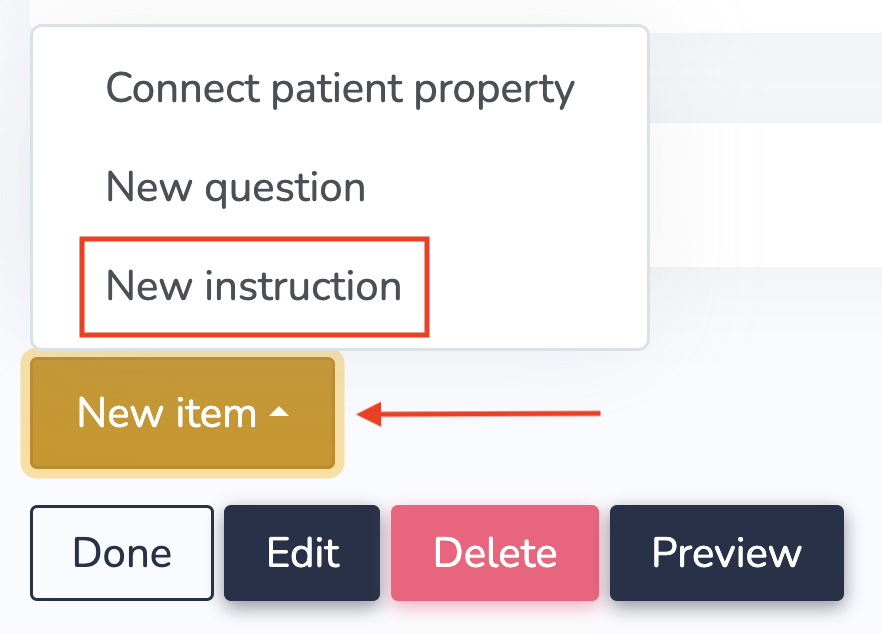
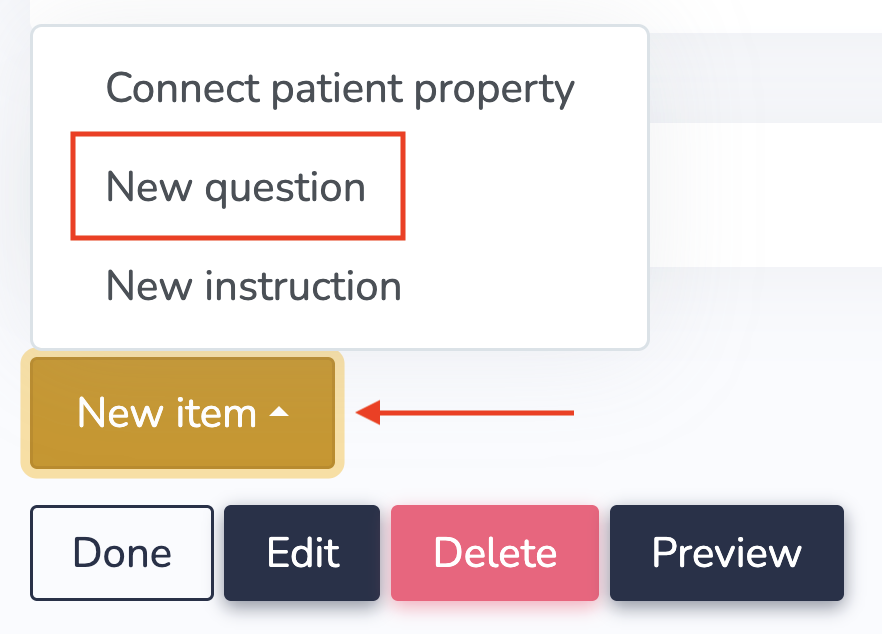
Click New item to begin adding content.
You will be prompted to choose between a New question or a New instruction.
Start with a New instruction — this is where you enter the static text of your consent form (e.g., the terms, scope of treatment, privacy statement, or any information the patient needs to read before consenting).
Add a consent acknowledgement question
Next, add a New question.
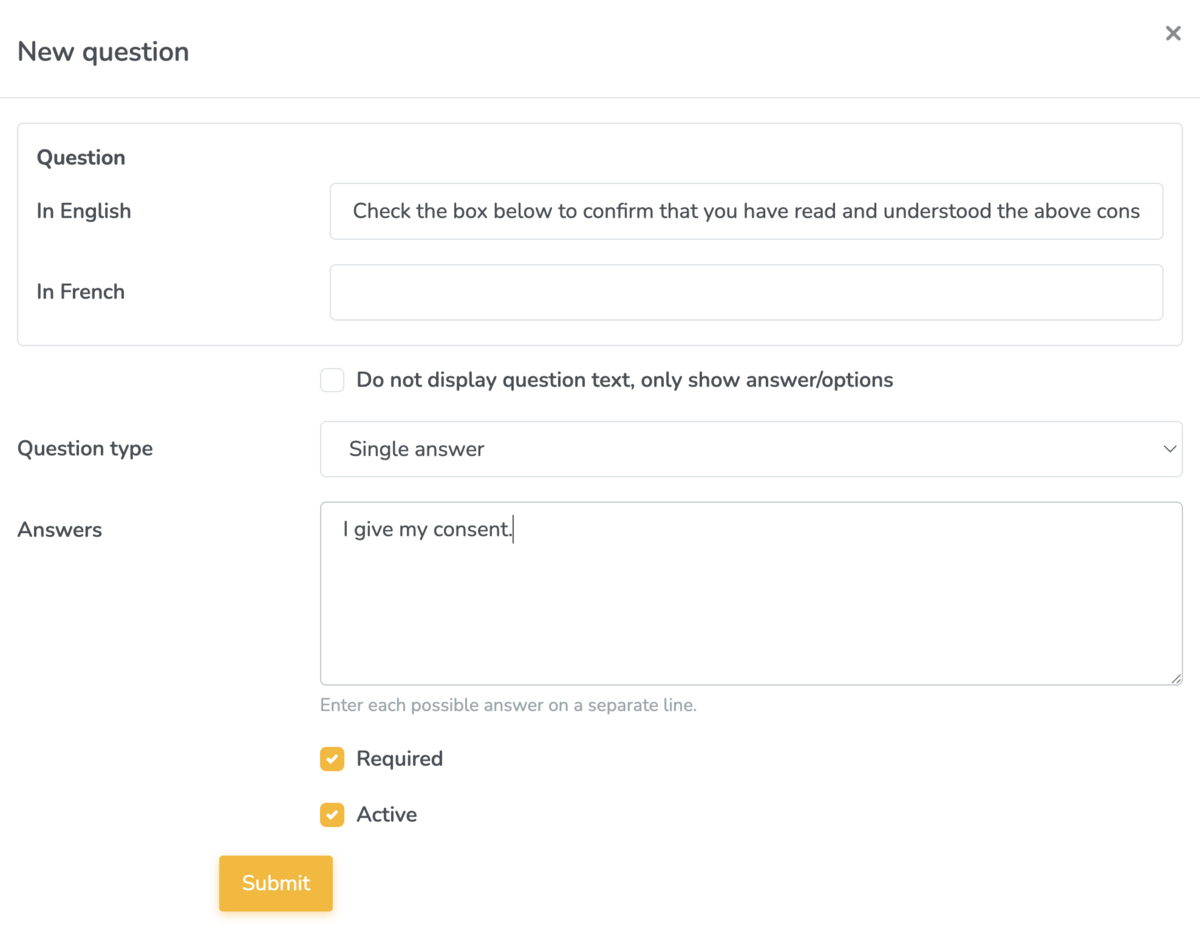
Set the question type to Single answer or Multiple answers, check the Required box, and write a question that prompts the patient to actively confirm their consent — for example:
"Check the box below to confirm that you have read and understood the above consent statements and are entering into them voluntarily."
Add a single answer option such as "I give my consent" and click Submit.
Optional: collect a typed name
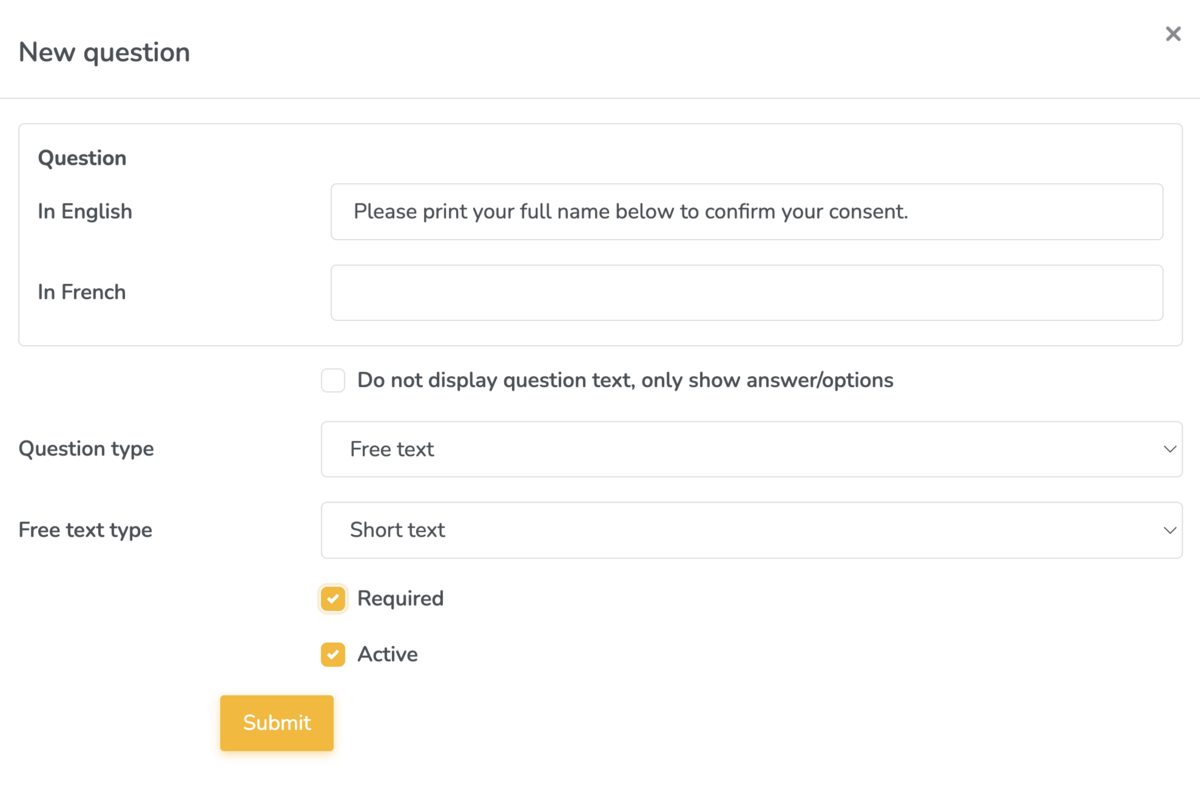
For an additional layer of documentation, add a second required question using Free text > Short text. Use a prompt such as:
"Please print your full name below to confirm your consent."
This creates a written record of the patient's identity alongside their acknowledgement.
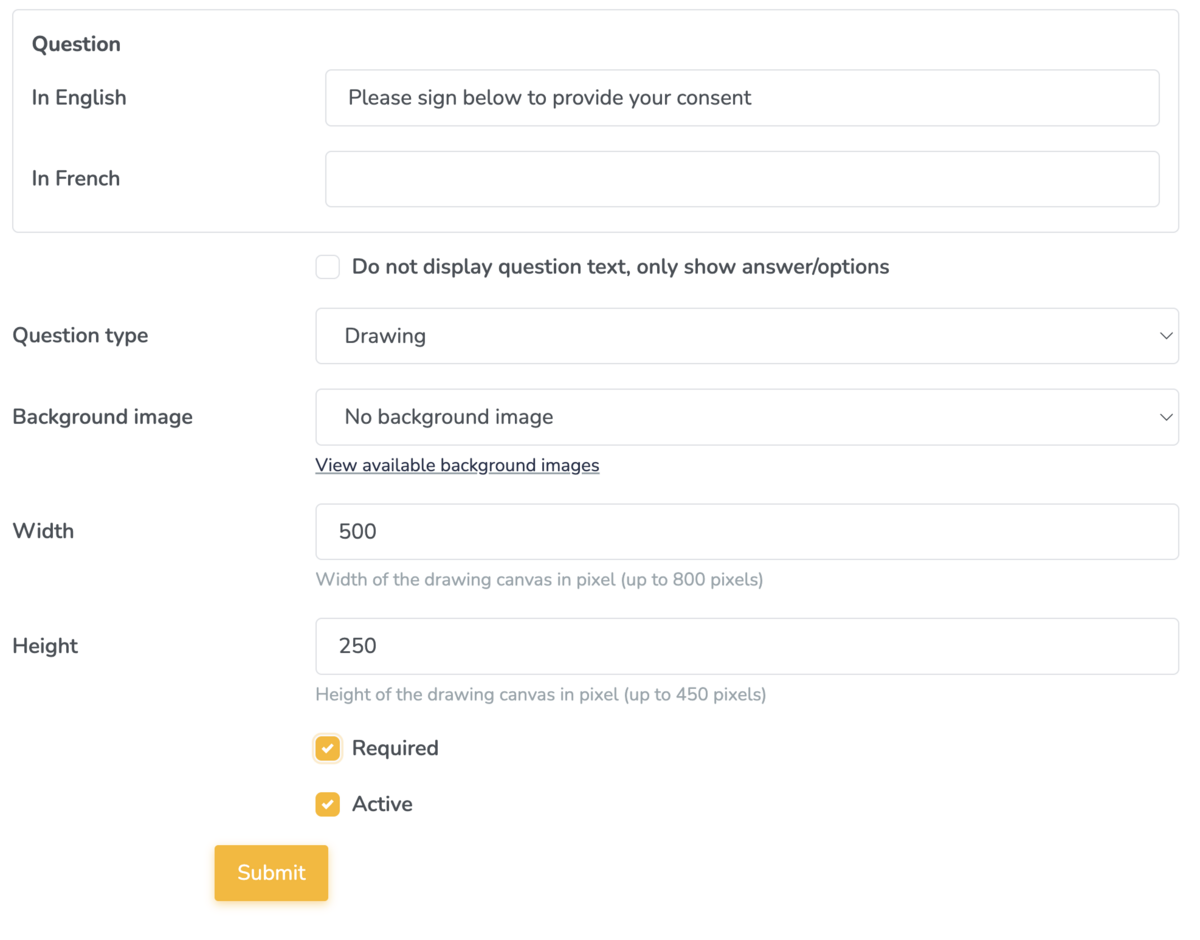
Optional: collect a drawn signature
If your clinical or regulatory body requires a handwritten signature, add a Drawing question type. Select No background image, write your signature prompt (e.g., "Please sign below to provide your consent"), and adjust the canvas size if needed. The default is 800 × 450 pixels — a smaller canvas such as 500 × 250 works well for signature-only fields.
Previewing your consent form
Use the Preview function at any stage to review how the form will appear to patients before sharing it.
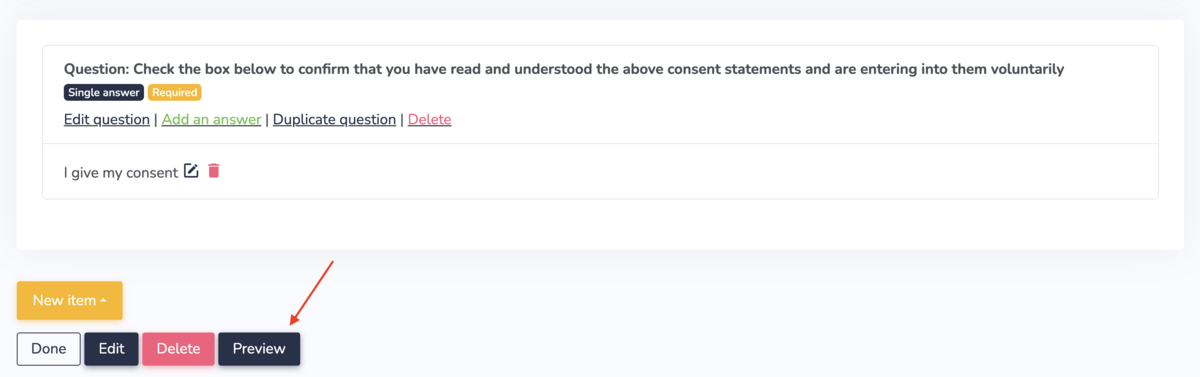
Once you are satisfied with the layout and content, click Back to exit the editor. Your new consent form will appear in My Questionnaires, ready to share.
Related guides